This is where you can manage search filters that will apply to ALL users.
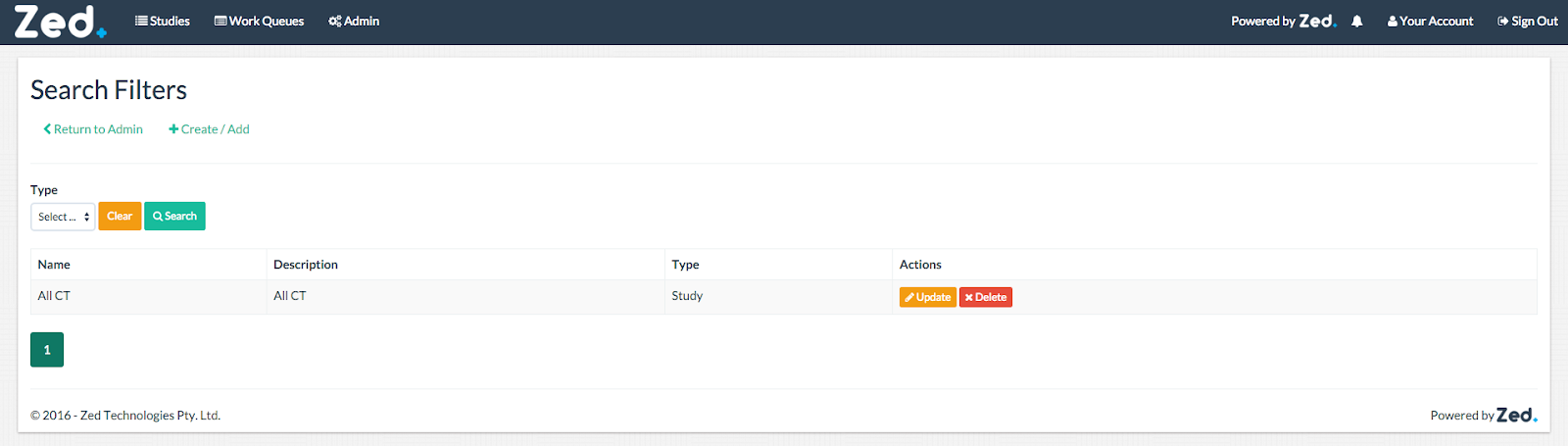
Create/Add Search Filters
To create/add a search filter click on the “Create/Add” button.

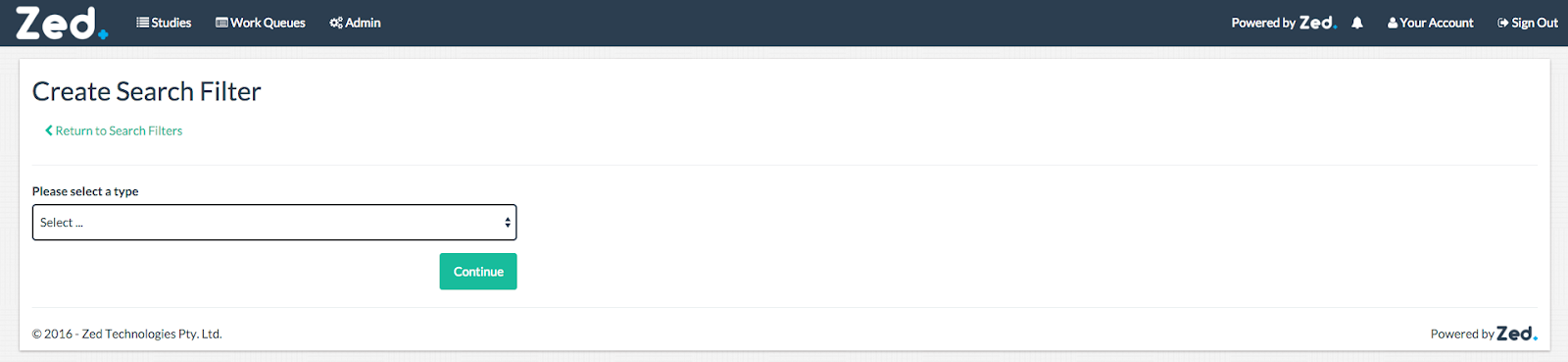
When you create a new search filter, you will be ask prompted to select a type of filter.
Study Search Filter
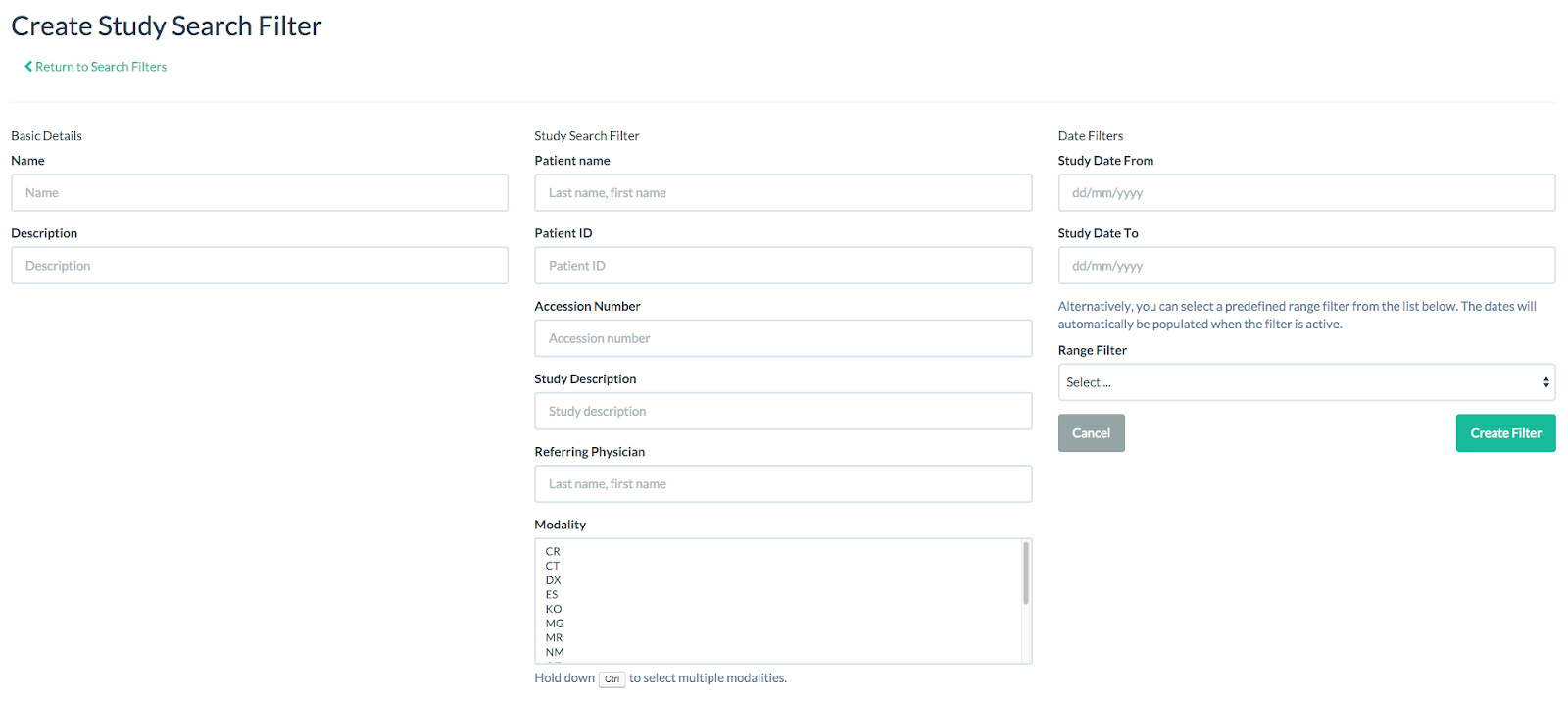
Below is a list of available search fields that comes with a standard Zed Link installation.
Field | Format | Example Value |
Patient name | The patient name format is SURNAME, FIRST NAME | Appleseed, John |
Patient ID | An alphanumeric string of characters. | 123456 |
Accession Number | An alphanumeric string of characters. | 2016Z0000001 |
Description | An alphanumeric string of characters. | MR BRAIN |
Referring physician | The referring physicians name format is SURNAME, FIRST NAME | Appleseed, John |
Study date from | The date format is dd/mm/yyyy | 01/01/2016 |
Study date to | The date format is dd/mm/yyyy | 01/01/2016 |
Modality | Can select multiple values by holding down “Ctrl” on your keyboard | CT, MR, DX |
Range Filter | Predefined date range filter. | Today, Yesterday, Last Week |
It should be noted that the standard Zed Link installation can be customised and certain search fields can be disabled or enabled. While all fields have been documented above, they may not be available.
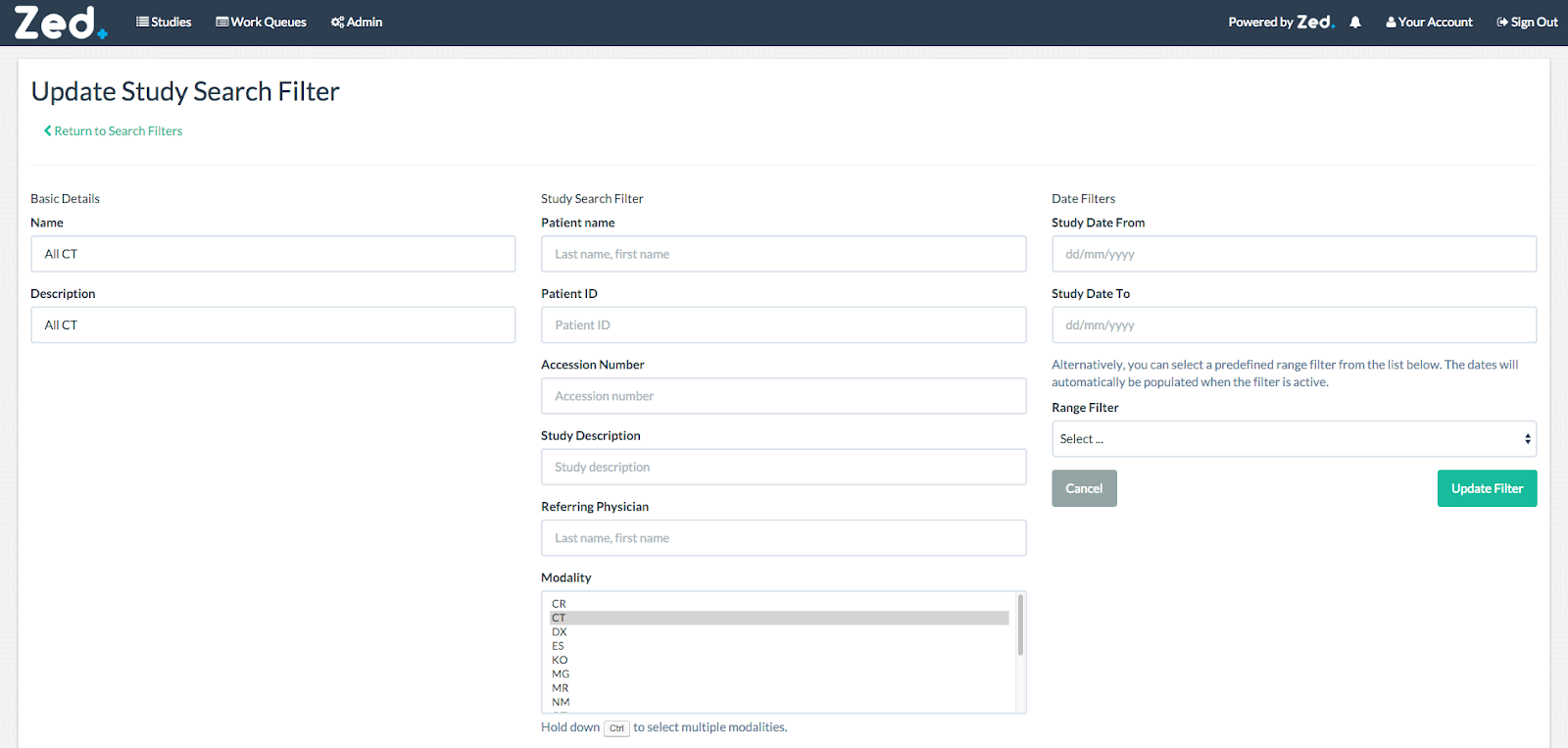
Update Search Filters
To update a search filter, click on the “Update” button in the user management page.
Delete Search Filters
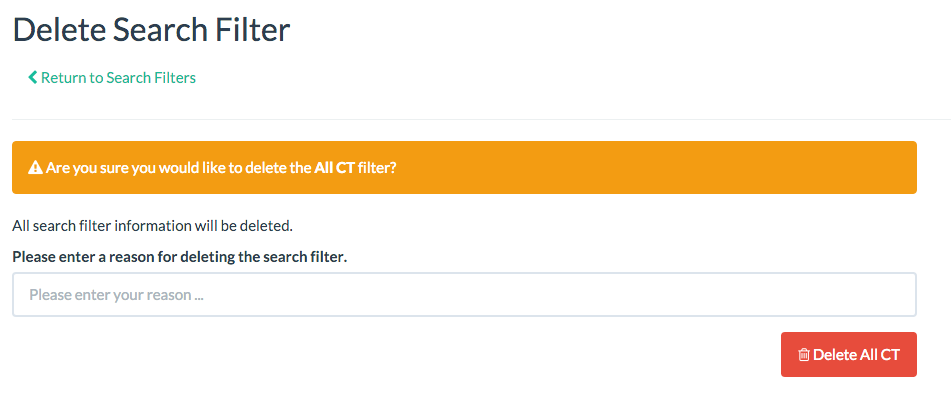
To delete a search filter, click on the “Delete” button in the search filter page.
You will be prompted to confirm the deletion and will require to enter a reason.