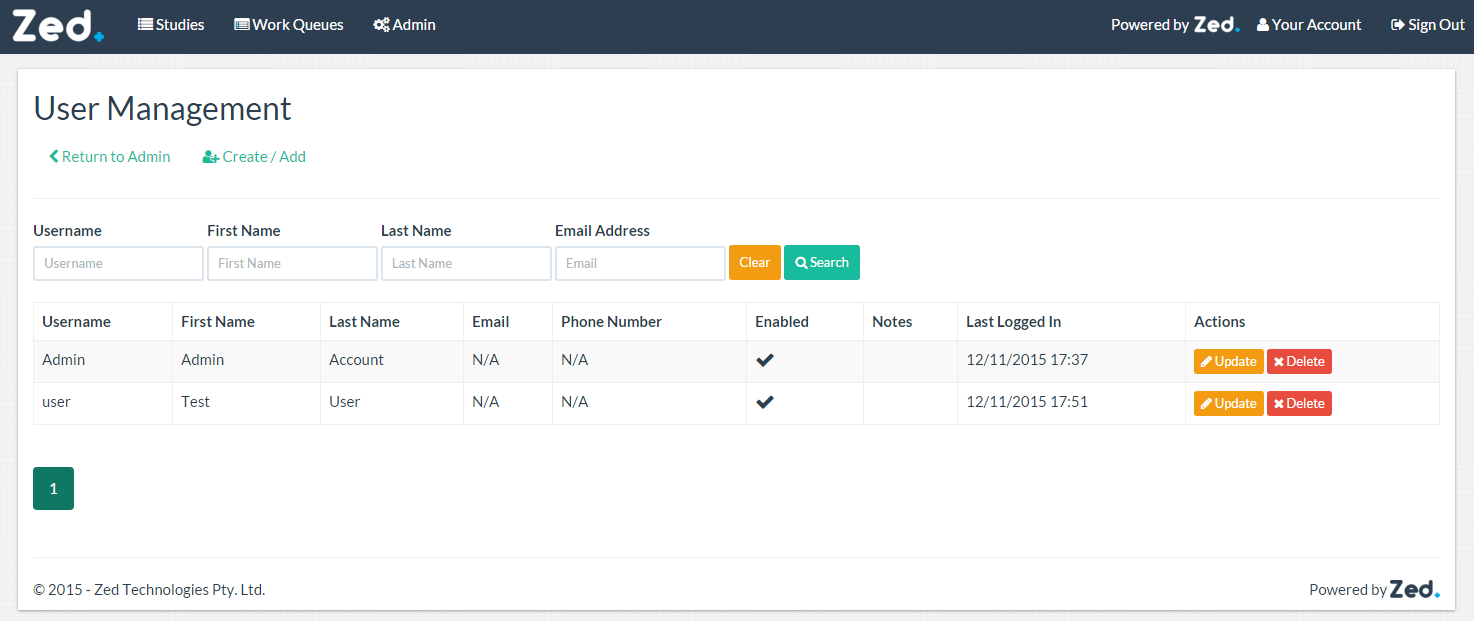
A valid user account is required to sign into Zed Link to address cybersecurity threats and to prevent unauthorised access. The user management screen is where all user accounts are created, updated, or deleted. An example of the user management page is below:
Create / Add User
To create/add a user click on the “Create/Add” button.
When you create a new user, you will be presented with the following form:
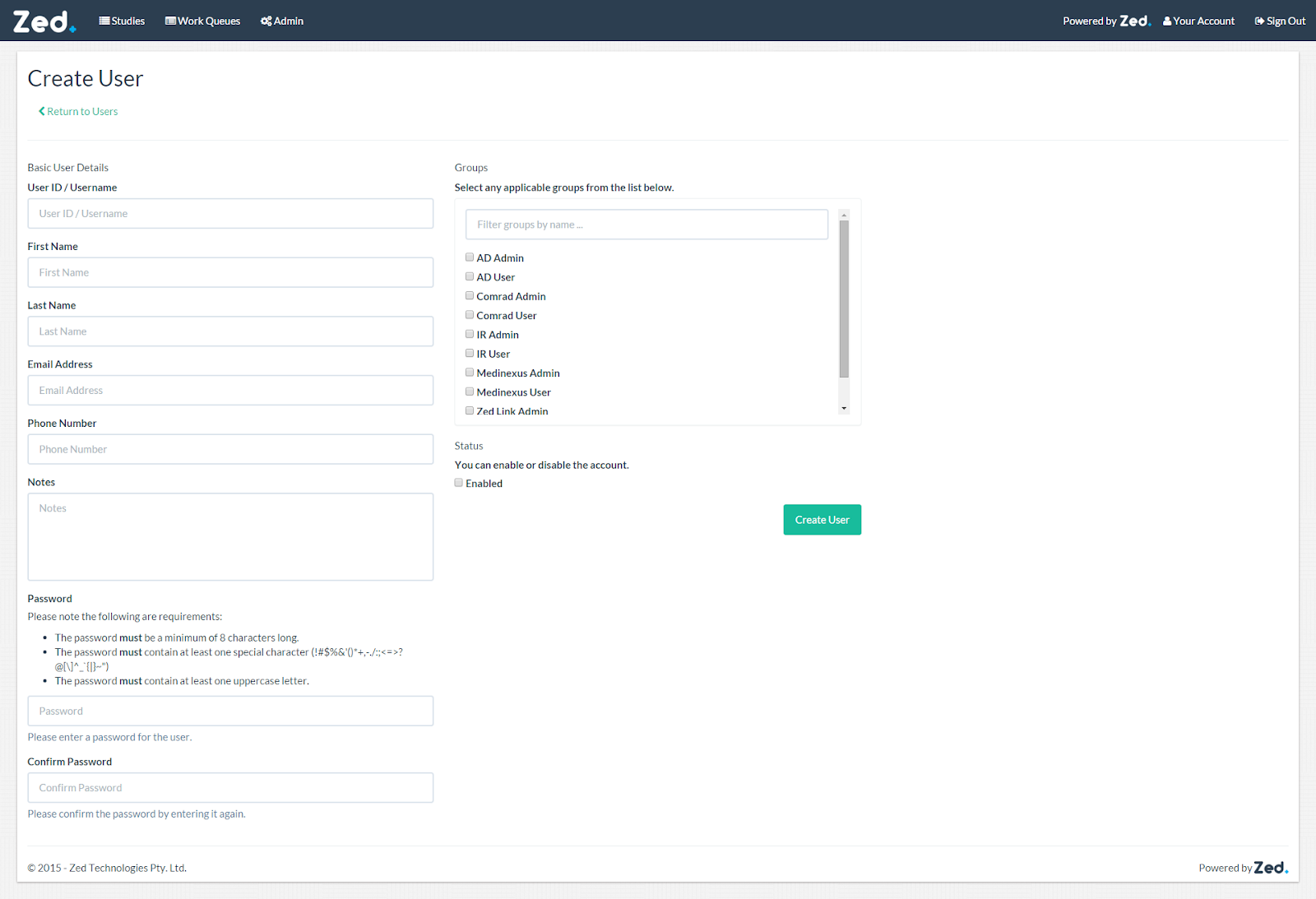
A description of the form fields is below.
Field Name | Description | Required |
User ID / Username | The user name that will be used to sign in with. | Yes |
First Name | The user's first name. | Yes |
Last Name | The user's last name. | Yes |
Email Address | The user's email address. This can also be used to sign in with. | No |
Phone Number | The user's phone number. | No |
Notes | Any additional information that should be noted for the user. | No |
Groups | Any groups the user should be added to. | No |
Valid From | Specify the start date for a temporary account. | No |
Valid Until | Specify the end date for a temporary account. | No |
Password | The user's password. | Yes |
Confirm Password | Confirm the user's password. | Yes |
Status (Enable) | Enable or disable the account. | Yes (by default it is checked) |
Status (Activate) | Activate or deactivate the account. | Yes (by default it is checked) |
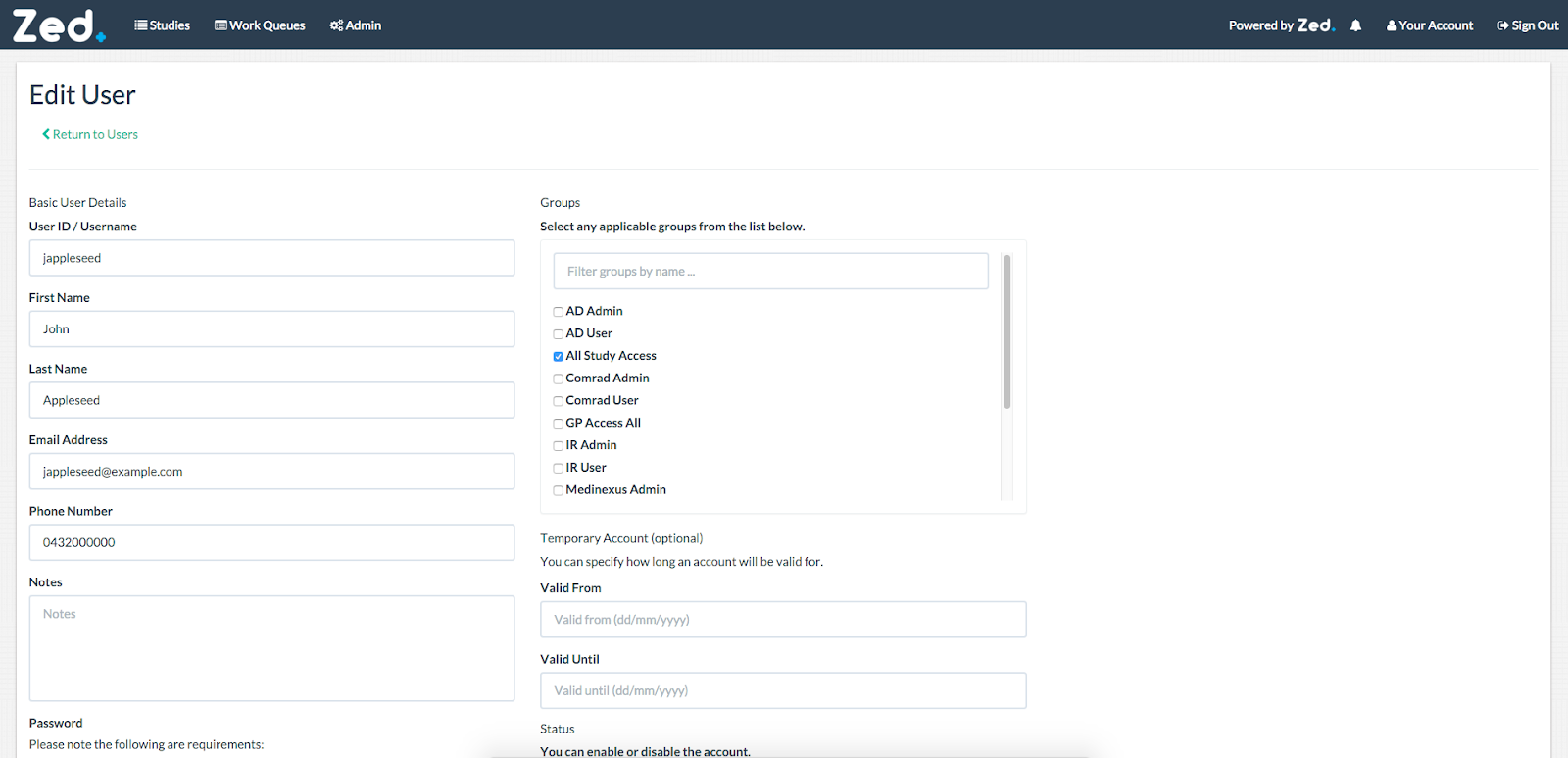
Update User
To update a user, click on the “Update” button in the user management page.
Delete User
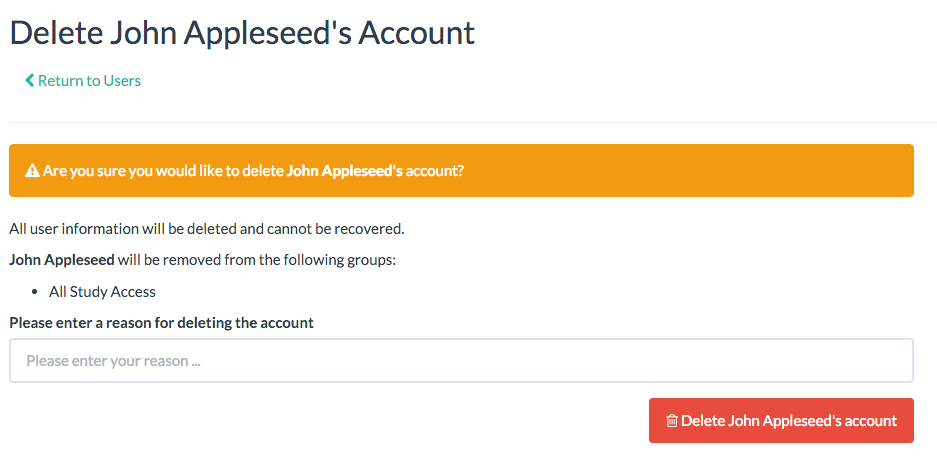
To delete a user, click on the “Delete” button in the user management page.
You will be prompted to confirm the deletion and will require to enter a reason.